Module NotePlus
Jump to navigation
Jump to search


Informations
| Module name | NotePlus |
| Editor / Editeur | |
| Download or buy page / Page achat ou téléchargement | |
| Status / Statut / Estado | Stable |
| Prerequisites / Prérequis |
|
| Last update date / Date mise à jour fiche / Fecha última actualización | 2026-01-6 |
| Note / Nota |
Features
This module enhances Dolibarr’s native notes functionality by allowing unlimited, highly secure notes to be added to nearly any ERP element. It features AES-256 encryption, personal or shared keys, PBKDF2 password management, and multi-company compatibility.

Unlimited Notes for Every Element
- Add an unlimited number of notes to each element.
- Each note includes a title and content.
- The system logs the date and user of the last modification:

Elements Supporting NotePlus Notes
- The "Note+" tab will appear in the following Dolibarr elements: Products, services, customers, suppliers, contacts, members, users, projects, contracts, quotes, customer orders, supplier orders, customer invoices, supplier invoices, calendar events, Bills of Materials (BOM), manufacturing orders, workstations, and tickets.
- Some of these elements (e.g., calendar events) do not have Dolibarr’s native "Private Note" or "Public Note" options:

Optional Note Encryption
- You can optionally encrypt note content.
- The module generates a random 256-bit key.
- The system prompts the user for an "unlock key".
- This key is not stored in the database.
- If lost or forgotten, encrypted data cannot be recovered.
- Adding encrypted notes is simple:
(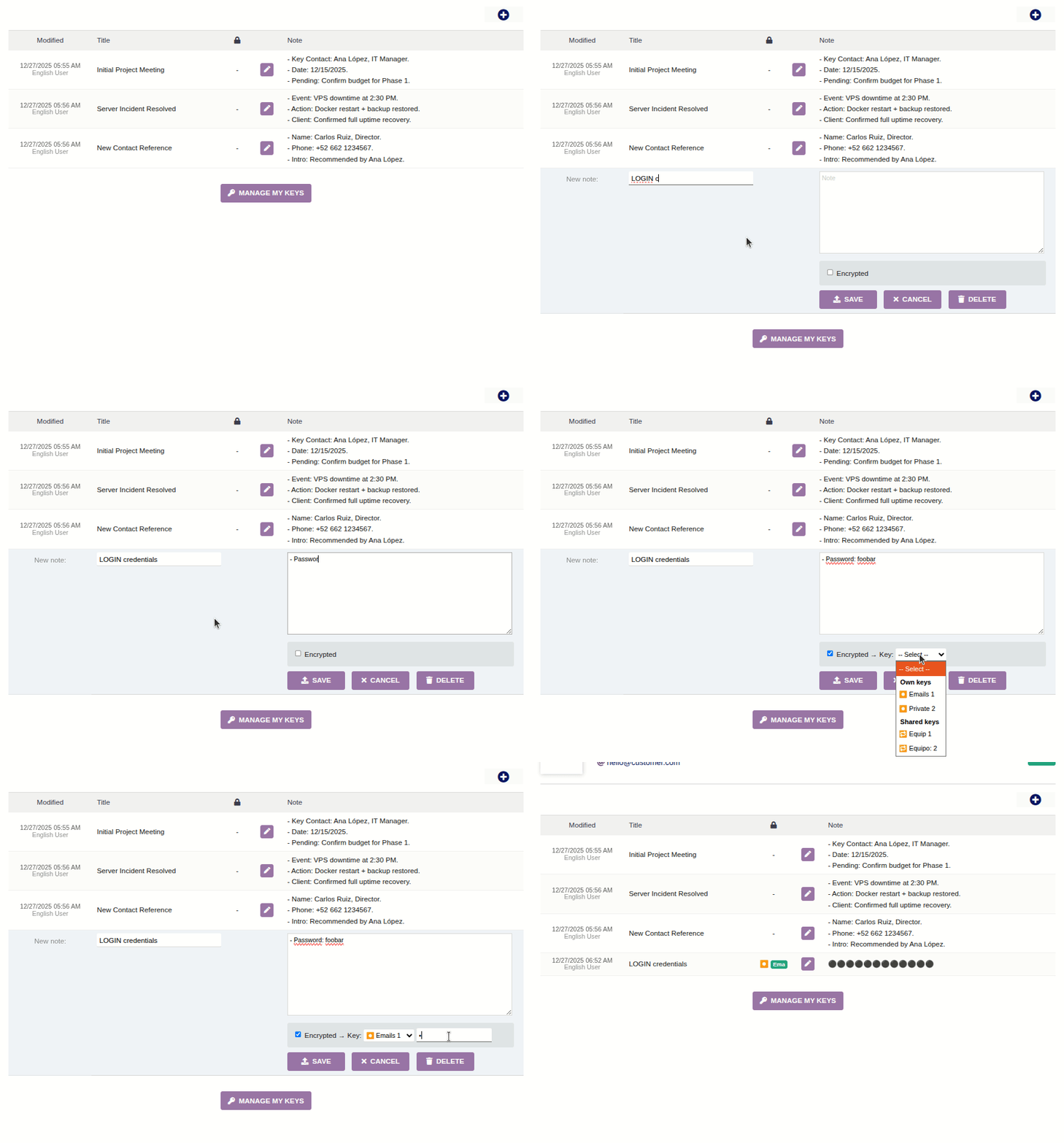 )
)
- To access encrypted note content, only the unlock key is required:

- Each user can create as many encryption keys as needed.
- Users can also create shared keys for team access.
- When using personal keys: Only the creator can decrypt notes
- When using shared keys: Any user with the key can decrypt notes.
- Each user manages their own keys:
(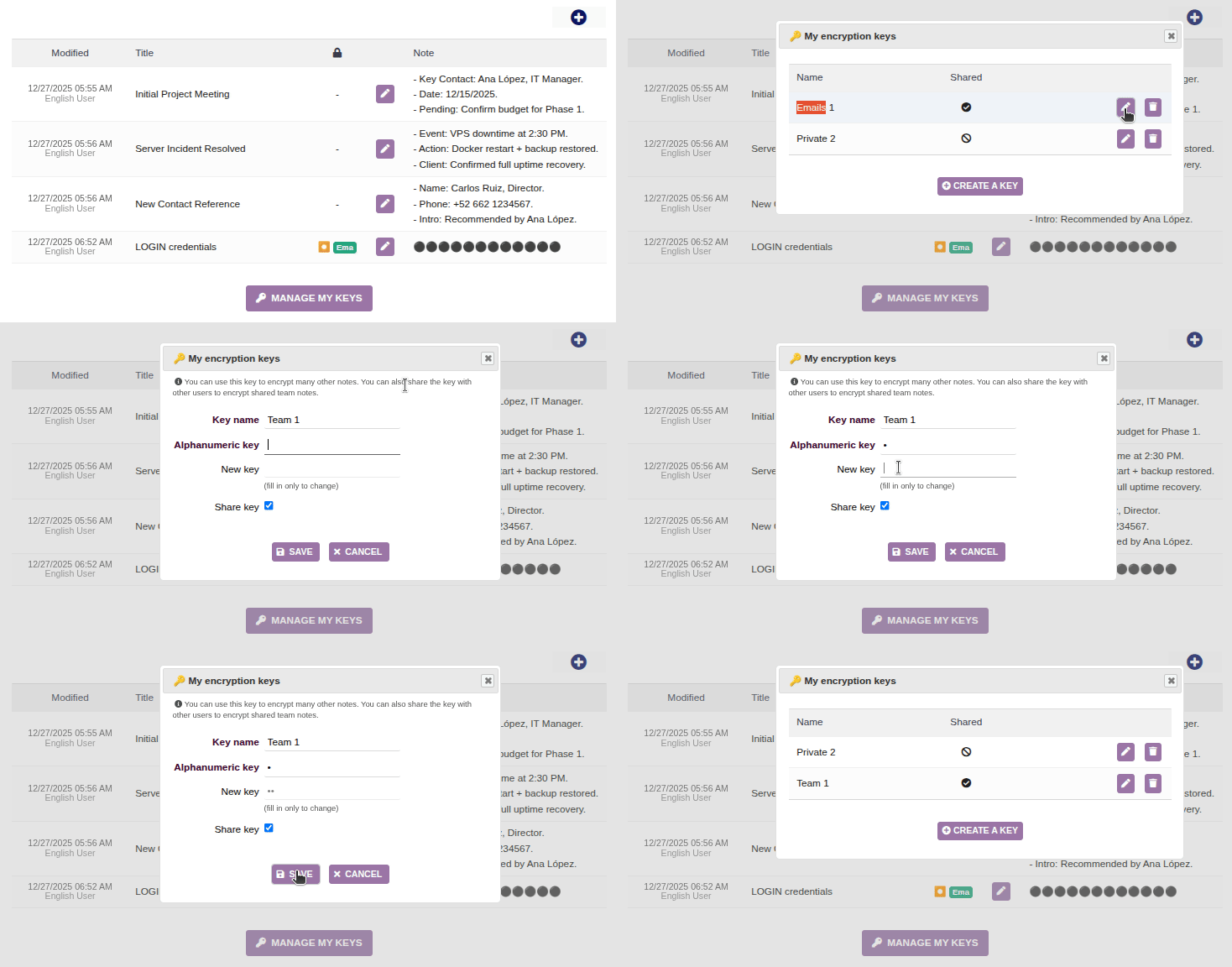 )
)
Shared Note Considerations:
- When a user marks a key as SHARED, others can use it to encrypt notes with the same unlock key, enabling secure collaboration.
- Only the key creator can modify or delete it (!!).
Technical Considerations
Secure Key Storage
- Encryption keys are 256-bit (64 hex characters), generated using PHP’s `openssl_random_pseudo_bytes()` with a unique salt. Example:
e3b0c44298fc1c149afbf4c8996fb92427ae41e4649b934ca495991b7852b855 - The key is stored in the database encrypted with AES-256, using the user’s unlock key (which is typically weak). To strengthen it, the system applies PBKDF2 with 600,000 iterations and a unique salt—double the OWASP 2025 recommendation (!!).
- Notes are encrypted using the 256-bit key also via AES-256.
⚠️ Performance Note: Encryption/decryption may add ~0.5 seconds (depends on server power).
Encryption Recommendations
While PBKDF2 hardening makes brute-force attacks difficult, we recommend:
- Avoid reusing keys—use different keys for different purposes to limit exposure.
- Use strong unlock keys—avoid short or dictionary-based passwords. Instead, use mixed case, numbers, and symbols. If using words, make them a long, nonsensical phrase.
Change Tracking
Currently, only the **last modification time and user** are logged. A full **change log** may be added in the future if demand exists.
Multi-Company Compatibility
- Notes added to a company’s elements are **only visible within that company**.
- Keys created by a user are **only accessible when working in that company**.
Installation Process
- Go to Configuration → Modules.
- Navigate to the "Install External Module" tab and upload the module’s ZIP file.
- Return to the "Available Modules" tab.
- Filter by Origin: "External - IMASDEWEB".
- Activate the module.
