Module DoliSCAN


Information
| Module name | DoliSCAN |
| Editor / Editeur | CAP-REL - doliscan.fr |
| Download or buy page / Page achat ou téléchargement | External module - www.dolistore.com |
| Status / Statut / Estado | Stable |
| Prerequisites / Prérequis | Suppliers, Third parties, Banks, Expense reports, Invoices, DMS (ECM) and Scheduled jobs modules; Projects and Multicompany optional
Dolibarr min version: See on Dolistore Dolibarr max version: See on Dolistore |
| Last update date / Date mise à jour fiche / Fecha última actualización | 2026-11-13 |
| Note / Nota | Expense reports from a smartphone: employees photograph their receipts with the DoliSCAN app, and Dolibarr receives the expense reports and supplier invoices, receipts attached. |
Features
Typing expense reports is repetitive work. With DoliSCAN, employees photograph their receipts on their smartphone and pick the expense type; the module does the rest in Dolibarr.
At a glance
- Who it is for: companies whose employees spend money on the road (meals, fuel, tolls, hotels, train), and the accountants who process those expenses.
- What it does: it imports the expenses entered in the DoliSCAN smartphone app into Dolibarr, once a day: an expense paid with a personal means of payment becomes an expense report line, an expense paid with a company means of payment becomes a supplier invoice. The receipts are downloaded and attached.
- What it needs: an account on a DoliSCAN server, the production server doliscan.fr (billed per active account) or a self-hosted one.
Feature list
- Automatic synchronization - a daily scheduled job imports the expenses of every active account, with a manual synchronization per account or for everybody.
- Personal or professional expenses - the means of payment chosen in the app decides the document: expense report line to reimburse, or supplier invoice, optionally paid automatically.
- Receipts - PDF and photos are downloaded from the DoliSCAN server and attached to the Dolibarr documents; a receipt not ready yet on the server is fetched again at the next synchronizations.
- One account per employee - each employee has their own DoliSCAN account linked to their Dolibarr user, and only sees their own expenses; wider access (accounting, management) goes through Dolibarr permissions.
- Projects - Dolibarr projects are sent to the app so that an expense can be assigned to a project.
- French fuel tax rules - partial VAT recovery on fuel, 80 % or 100 % depending on the vehicle type.
- Meal caps - configurable cap on meal expenses per user group.
- Multicompany - compatible with the Multicompany module, with a mapping of the accounts per entity.
- Diagnostics - a maintenance page checks the scheduled job, the clock, the user permissions and the data consistency, and fixes what it can.
- Seven languages - English, French, German, Spanish, Italian, Dutch and Brazilian Portuguese.
Screenshots
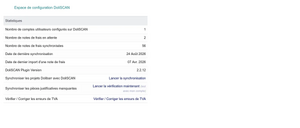
Module home page with the synchronization statistics
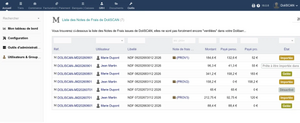
Expense reports received from the app
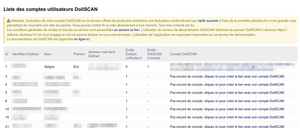
DoliSCAN accounts of the employees
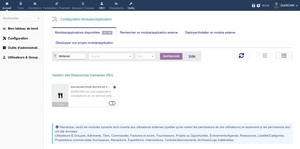
Enabling the module


Links
- Module documentation
- What's new in version 2.2.30 (in French)
- Get update notifications
- Support form
- Quality report: the automated and manual tests of the module
Requirements
| Item | Version or condition |
|---|---|
| Dolibarr | 18.0 or higher |
| PHP | 7.4 or higher |
| DoliSCAN server | an account on doliscan.fr or on a self-hosted server |
| Rights | an administrator account to install, enable and set up the module |
| Dolibarr module | Used for |
|---|---|
| Suppliers | supplier invoices of the professional expenses |
| Third parties | suppliers linked to the expense types |
| Banks | bank account of each professional means of payment |
| Expense reports | expense report lines of the personal expenses |
| Invoices | invoicing |
| DMS (ECM) | storage of the receipts |
| Scheduled jobs | daily synchronization |
| Projects (optional) | assignment of an expense to a project |
| Multicompany (optional) | one DoliSCAN setup per entity |
Installation
- Download archive file of module (.zip file) from web site www.dolistore.com or from any other source.
- Install module into the /custom folder of Dolibarr:
- Go to Home - Setup - Modules - Deploy/install external app/module
- Upload the file. Note: If it fails because upload from this page has been locked by your web hosting provider, you can manually unzip the file into the /custom directory from command line: Go into the /custom directory and uncompress file with command unzip modulefile.zip then check that the directory with the nameof the module is inside the /custom directory. If into a subdirectory, just move it into /custom.
- Module should be ready to be activated and used.
Upgrade
- Install the new version through Home > Setup > Modules/Applications > Deploy/install external app/module.
- Disable then enable the module again: enabling applies the database upgrades and registers the new permissions.
The accounts, the settings and the imported expense reports are kept.
Uninstall
Disable the module from Home > Setup > Modules/Applications. The DoliSCAN data (linked accounts, synchronized expense reports) stays in the database: enabling the module again resumes the synchronization where it stopped.
Setup
To use this module, you must first enable it using an administrator account, via the menu option "Home - Setup - Modules".
Choose the tab where the module is listed. Then click on "Activate".
The module is now activated.
If a cog icon appears  on module thumb or at end of the line of the module, click on it to access the setup page specific to the module.
Before setting up the module, complete the Company/Organization card (name, address, email, phone, website, company identifiers, managers): the DoliSCAN server checks it when the administrator account is created.
The setup is in Home > Setup > Modules > DoliSCAN, in numbered tabs to go through in order:
| Tab | Purpose |
|---|---|
| 1. Server | choose the DoliSCAN server: production, test or self-hosted |
| 2. Administrator | create or link the administrator account, check the connection, choose the import start date |
| 3. Supplier links | Dolibarr supplier of each professional expense type |
| 4. Expense types | Dolibarr expense type of each personal expense type |
| 5. Means of payment | bank account and payment mode of each professional means of payment |
| 6. Miscellaneous | automations: account creation, payment, validation and approval, projects |
| 7. Fuel | partial VAT recovery depending on the vehicle type |
| 8. Special rules | meal caps per user group |
| Multicompany | accounts of employees working for several companies |
Tabs 3, 4 and 5 download their lists from the DoliSCAN server: set up the server and the administrator account first. Use a generic administrator account (for example admin@example.com), not a personal one: an administrator account cannot have expense reports.
Permissions
The permissions are granted from Home > Users & Groups, Permissions tab, DoliSCAN section.
| Permission | Purpose |
|---|---|
| Read / create / delete my own DoliSCAN account | an employee manages their own account (each active account is billed by the server) |
| Read / delete my own DoliSCAN expense reports | an employee sees their own imported expense reports |
| Validate, cancel or reset to draft my own DoliSCAN expense reports | status changes made by hand (the automatic import does not need it) |
| Download the DoliSCAN expense reports of other users | accounting or administrator, to process everybody's expenses |
| Read / create / delete all DoliSCAN accounts | administration of the employee accounts |
Usage
The module adds a DoliSCAN application entry in the HRM menu.
Home page
The home page shows the number of accounts, the expense reports waiting and synchronized, and the dates of the last synchronization and of the last import. Three buttons: Synchronize the projects, Synchronize the missing receipts and Check / fix the VAT errors.
Synchronization
The scheduled job runs once a day: it sends the projects to the server, synchronizes the expense reports of every active account, then downloads the missing receipts. The server accepts one synchronization per 23 hours; schedule the job after 4 pm so that the PDF of the day are ready. A manual synchronization is available from the All accounts page (for everybody or for one account) and from the My account page.
Projects
When the Projects module is enabled, each validated project gets a DoliSCAN code field. The code shows in the smartphone app so that an expense can be assigned to the project. Closed projects can be hidden.
The full user guide is in the documentation.
FAQ
The synchronization does not start.
Check that the scheduled job is enabled in Home > Setup > Scheduled jobs, that no synchronization ran in the last 23 hours, and test the connection from the Server tab of the setup.
Supplier invoices are not created.
They are created only for expenses paid with a professional means of payment. Check that each professional expense type is linked to a Dolibarr supplier in the Supplier links tab.
A receipt is missing, or a PDF shows a "document unavailable" image.
Open the diagnostics page of the module: section 9 lists and removes the placeholder images. Then click Synchronize the missing receipts on the home page.
How does the partial VAT recovery on fuel work?
With the French tax rules enabled in the Fuel tab, a utility vehicle keeps 100 % of the VAT; a passenger car gets a line with 80 % of the VAT of the receipt and a complement line at 0 % for the part that cannot be recovered.
All questions: documentation FAQ.
Development
Developments and improvements can be suggested to the project maintainer by email (see the headers of the source files) or through the support form.