Module Vendor price tax code

| Editor | Dolibarr User Australia |
|---|---|
| Module ID | 491733 |
| Version | 1.0.0 |
| Dolibarr | 23, 24 |
| Where to get it | DoliStore (Vendor price tax code, free) |
| Support | dolibarruseraustralia@gmail.com |
| Licence | GPL v3 or later |
On a product's Buying prices tab, Dolibarr asks for a vendor price's tax rate as a plain number and saves no tax code. Purchase order and supplier invoice lines then can't pre-select the right code. That matters wherever codes count for tax reporting: in Australia, for example, GST, GST-free and input-taxed purchases are reported differently, and many countries have several codes for the same rate. Vendor price tax code shows the usual tax rate drop-down on the vendor price form and saves the code you choose.
What it does
- Tax rate drop-down on the vendor price form, when adding and when editing a price: the rates and codes of your company's country, from Setup → Dictionaries → VAT rates, e.g. "10% (GST)", "0% (FRE)".
- Saves the tax code on the vendor price, so purchase order and supplier invoice lines for that price pre-select it.
- Your country's word for the tax: the screens say GST (English, Australia), Sales tax (English, USA), VAT or TVA, following Dolibarr's own wording for the country and language.
- Free text when you need it: the setup page turns the drop-down off for adding or for editing, e.g. for an overseas vendor whose rate isn't in your list (standard Dolibarr behaviour).
- Safe alongside customisations: if the page already shows a tax drop-down there, the module leaves it as it is.
- No changes to Dolibarr files: hooks and a trigger only, no tables of its own. Disabling the module keeps the codes already saved.
Tax codes
The codes come from Setup → Dictionaries → VAT rates. Some countries' standard rates have no code (Australia's 10% and 0%, for example): add codes there (e.g. GST, FRE) so they can be saved and pre-filled. Vendor prices saved before the module was enabled have no code: edit one, check the rate and save to store it.
Installation
Home → Setup → Modules/Applications → "Deploy/install external app/module", upload the zip, then enable "Vendor price tax code" (Product Management). The setup page (gear icon) is optional.
Compatibility
- Dolibarr 23 and 24: verified on clean installs of 23.0.4 and 24.0.1, and on a production system (24.0.1). Works with Multicurrency.
- PHP 8.1 or later (tested on 8.3), MySQL / MariaDB.
- English and French. Translations welcome.
Screenshots
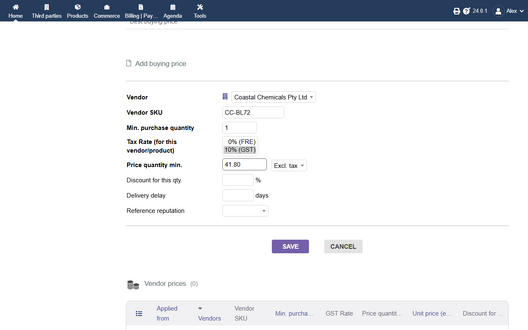
Adding a vendor price: the tax rate drop-down with codes
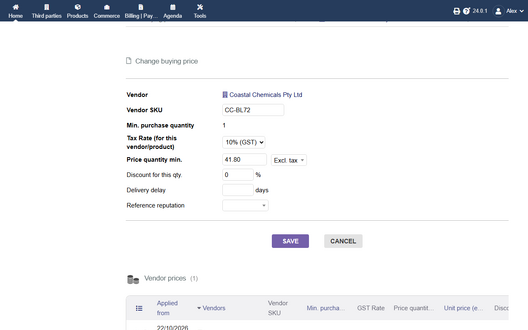
Editing it: the saved code is selected
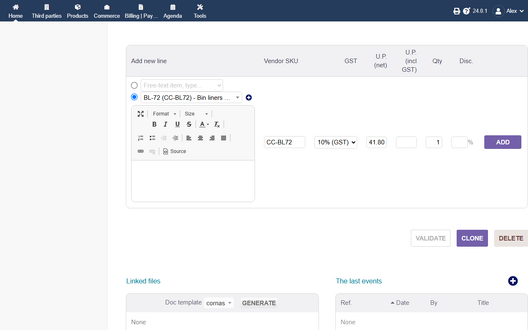
A purchase order line pre-selects "10% (GST)"
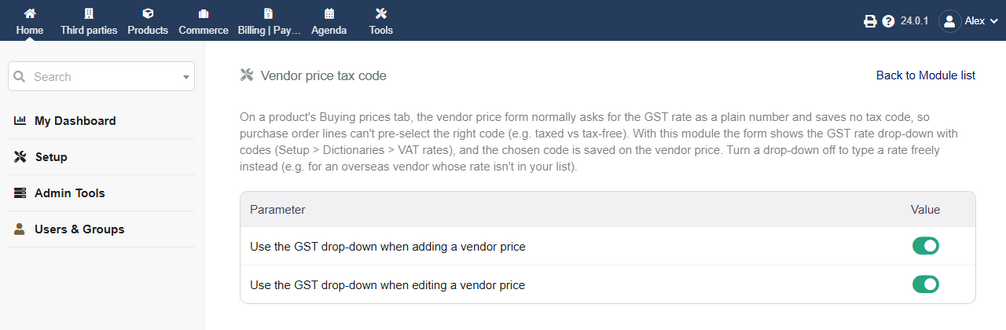
The setup page


