Module UptoSign


Information
| Module name | UptoSign |
| Editor / Editeur | CAP-REL - www.cap-rel.fr |
| Download or buy page / Page achat ou téléchargement | External module - www.dolistore.com |
| Status / Statut / Estado | Stable |
| Prerequisites / Prérequis | ECM module (enabled automatically); an account on uptosign.com
Dolibarr min version: See on Dolistore Dolibarr max version: See on Dolistore |
| Last update date / Date mise à jour fiche / Fecha última actualización | 2026-10-26 |
| Note / Nota | Electronic signature and sealing of your Dolibarr documents, eIDAS compliant, through the UptoSign service hosted in France. |
Features
UptoSign gets your quotes, contracts and invoices signed online without leaving Dolibarr. Your customer signs from their phone, and the signed document comes back into Dolibarr on its own, with its proof file.
At a glance
- Who it is for: sales teams who want a quote signed the same day, service companies that get contracts and intervention reports signed in the field, associations and HR departments that circulate charters, rules and contracts to many people.
- What it does: it sends the PDF of a Dolibarr document to the UptoSign service, follows the procedure and brings back the signed document and its proof file.
- What it needs: an account on uptosign.com, separate from the purchase of the module. Signatures and seals are billed by UptoSign according to your plan. A free demonstration server lets you try everything before you subscribe.
Feature list
- Electronic signature - one or several signatories receive a link by e-mail and confirm their identity with a code sent by SMS (advanced simple signature, eIDAS).
- Sealing and timestamping - lock an invoice or any other PDF without involving a signatory: any later change shows.
- Mass signature - have the same document signed by many people, each one on their own copy, with a tracking table per recipient.
- Local signature - your customer is sitting in front of you: start the procedure on the spot, without sending a link.
- Public signature page - your contacts read, accept or refuse the documents from a web page, with no Dolibarr account.
- Reminders - remind the signatories who have not signed yet, on demand or automatically every 2, 3 or 7 days.
- Proof file and integrity check - each signature comes with its proof file, and the checksum of the signed files can be checked at any time.
- Automations - invoice created when a quote is signed, sealed and sent by e-mail, signed orders closed, services of a signed contract activated.
- Daily archiving - a scheduled job checks the local copy of each signed document and downloads again whatever is missing.
- Multicompany - each entity has its own UptoSign account.
- Eleven languages - English, French, German, Spanish, Italian, Dutch, Brazilian Portuguese, Danish, Hungarian, Polish and Slovenian.
Supported documents: commercial proposals, customer and supplier orders, supplier proposals, invoices, contracts, interventions, shipments, projects, third parties and users.
Screenshots
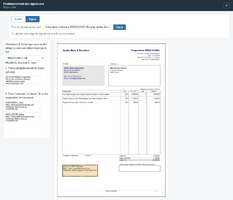
Positioning window: the seal and a signature area dropped on the PDF
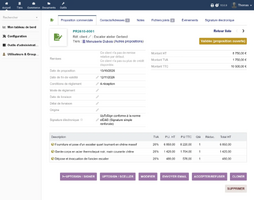
Sign and seal buttons on a quote card
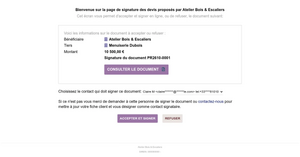
Public signature page
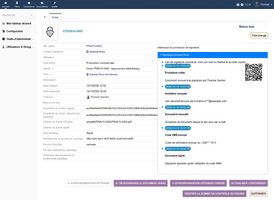
Card of a signature procedure and its history
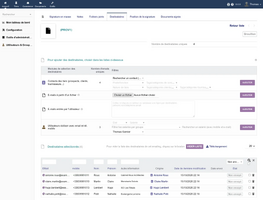
Recipients of a mass signature envelope
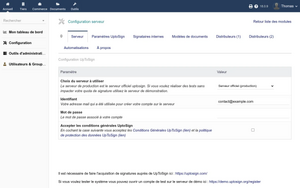
Module setup tabs


Links
- Module documentation
- What's new in version 2.5.2 (in French)
- Get update notifications
- Support form
- Quality report: the automated tests run on each version
- UptoSign service, to open your account
Requirements
| Item | Version or condition |
|---|---|
| Dolibarr | 18.0 or higher |
| PHP | 7.4 or higher, with the intl, fileinfo, gd and mbstring extensions |
| Dolibarr modules | ECM (enabled automatically by UptoSign) |
| UptoSign account | on uptosign.com, or a free account on the demonstration server to try the module |
| Rights | an administrator account to install, enable and set up the module |
Installation
- Download archive file of module (.zip file) from web site www.dolistore.com or from any other source.
- Install module into the /custom folder of Dolibarr:
- Go to Home - Setup - Modules - Deploy/install external app/module
- Upload the file. Note: If it fails because upload from this page has been locked by your web hosting provider, you can manually unzip the file into the /custom directory from command line: Go into the /custom directory and uncompress file with command unzip modulefile.zip then check that the directory with the nameof the module is inside the /custom directory. If into a subdirectory, just move it into /custom.
- Module should be ready to be activated and used.
Upgrade
- Install the new version through Home > Setup > Modules/Applications > Deploy/install external app/module.
- Disable then enable the module again: enabling applies the database upgrades and registers the new permissions.
Disabling the module keeps all its data: signatures and their history, mass signature envelopes, document configurations and settings.
Uninstall
Disable the module from Home > Setup > Modules/Applications. Signed documents already brought back stay in the attached files of your Dolibarr cards, and no data of the module is deleted.
Setup
To use this module, you must first enable it using an administrator account, via the menu option "Home - Setup - Modules".
Choose the tab where the module is listed. Then click on "Activate".
The module is now activated.
If a cog icon appears  on module thumb or at end of the line of the module, click on it to access the setup page specific to the module.
The setup is in Home > Setup > Modules > UptoSign. The minimal steps to start:
- Server tab: choose the server (production or demonstration), enter your UptoSign credentials, accept the terms, save then click Check connection. If the account does not exist yet on the chosen server, the module creates it.
- UptoSign parameters tab: pick the Dolibarr user used for the actions made without a logged in user (public page, scheduled jobs).
- Templates tab: check the configurations installed for the standard PDF models of Dolibarr and create the missing ones. A configuration says where the seal and the signatures go on the PDF.
- Permissions: grant Request signings to the users who must have documents signed or sealed.
The other tabs set the internal signers, the automations triggered by a signature and the reseller features. Every setting is described in the setup guide.
Permissions
Only the read permissions are granted by default. Starting a signature or a seal is billed by UptoSign and sends SMS: an administrator grants Request signings and Create and edit UptoSign lists explicitly, from Home > Users & Groups, Permissions tab. The permission Dolibarr user who can be asked to sign documents lets a user be picked as an internal signatory.
Usage
Who signs
The signatories offered for a document are:
- the customer contacts linked to the document with the contact role Signature électronique (client) (the label the module installs, in French in every language), or failing that the contacts of the third party with that role;
- the internal users linked to the document with the contact role Signature électronique (vendeur), and the users ticked in the Internal signers tab of the setup.
Each signatory needs an e-mail address, a name and a mobile number in international format, for example +33612345678.
Signing a document
- Validate the document and generate its PDF.
- Open the Electronic signature tab and click Set signature positions: the positioning window opens.
- Choose Sign, drop the UptoSign seal and the signature area of each signatory on the PDF.
- Send: each signatory receives an e-mail with a link to the UptoSign signature page.
The signed document and its proof file are brought back into Dolibarr, next to the original, and the agenda keeps track of every step. Magic keywords placed in your PDF models position the signatures automatically.
Sealing a document
In the positioning window, choose Seal and drop the seal: the document is timestamped and locked, with no signatory. From the invoice list, the mass action Seal a batch of invoices (via uptosign) seals several invoices at once.
Mass signature
The Documents > UptoSign > Multiple signatures menu creates envelopes: one PDF, up to 30 recipients picked from your contacts, users, members or event attendees, imported from a CSV file or typed in. Each recipient signs their own copy, and a table follows each one.
The whole usage is described in the user guide.
FAQ
What is the difference between a signature and a seal?
A signature involves one or several signatories who confirm their identity with a code, and commits the parties. A seal guarantees the integrity and the timestamp of a document, with no signatory.
The mobile number of the signatory is refused.
It must be in international format, for example +33612345678. Fix it on the card of the contact or of the user.
"There is no configuration for this document model".
Create a configuration for that PDF model in the Templates tab of the setup.
Can I try without paying?
Yes: choose the demonstration server in the Server tab. Documents signed there have no legal value.
All questions: documentation FAQ.
Development
Developments and improvements can be suggested to the project maintainer by email (see the headers of the source files) or through the support form.