Module MegaNotes


Information
| Module name | MegaNotes |
| Editor / Editeur | CAP-REL - cap-rel.fr |
| Download or buy page / Page achat ou téléchargement | External module - www.dolistore.com |
| Status / Statut / Estado | Stable |
| Prerequisites / Prérequis | None for the web interface; SmartAuth module for the mobile application
Dolibarr min version: See on Dolistore Dolibarr max version: See on Dolistore |
| Last update date / Date mise à jour fiche / Fecha última actualización | 2026-10-28 |
| Note / Nota | Enriched note taking inside Dolibarr: quick entry with sigils, links to third parties and Dolibarr objects, keywords, statuses, dashboard and mobile application. |
Features
MegaNotes brings into Dolibarr what is said on the phone, on the field or in a meeting, the moment you write it down. Each note (called a "need" in the module) is linked to the third parties and Dolibarr objects it is about, sorted by category, followed by status, and found again by keyword.
At a glance
- Who it is for: sales teams, support and field teams who take notes along their exchanges with customers.
- What the module does: it records notes in Markdown, links them to third parties and Dolibarr objects through sigil entry, extracts their keywords and shows the list, the recurring topics and the statistics.
- What it does not do: it creates no Dolibarr object from a note (no proposal, order or intervention) and declares no scheduled job.
Feature list
- Quick entry - Markdown editor (EasyMDE), submit with Ctrl+Enter, category picked or created while typing, public or private note.
- Sigils -
$links a third party,#adds a tag,&links a Dolibarr object: project, task, proposal, order, invoice, intervention, contract, product or service, depending on the enabled modules. - Statuses - New, In progress, Done, Dropped, changed straight from the list.
- Keywords - extracted automatically from the text on a quick entry or from the mobile application; the 50 most frequent are shown, words found in three notes or more are flagged as recurring.
- Statistics - breakdown by status, ten most used categories, number of notes created per month over the last twelve months.
- Card of a note - extra fields, contacts, notes, attached documents, events, sending by email, cloning.
- Quick access - optional icon in the top bar of Dolibarr.
- Mobile application - web application (PWA) to read and write notes from a phone, change their status and archive them.
Screenshots
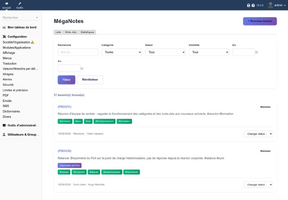
Home page with the list of notes and the filters
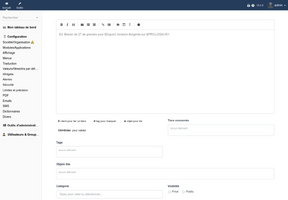
Quick entry with the editor and the sigils
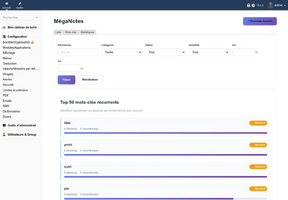
Most frequent keywords
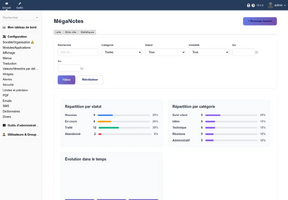
Statistics by status, category and month
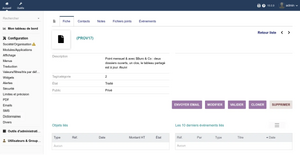
Card of a note
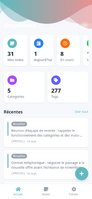
Home page of the mobile application


Links
- Module documentation
- What's new in version 1.0.4 (in French)
- Get update notifications
- Support form
- Automated test report
- Online demo: a Dolibarr with the notes of a company of about fifty employees, created for you in less than 20 seconds and removed after the session
Requirements
| Item | Version or condition |
|---|---|
| Dolibarr | 18.0 or above |
| PHP | 7.4 or above |
| Rights | an administrator account to install, enable and set up the module |
| Mobile application | the SmartAuth module enabled, and a public HTTPS address whose root is the pwa directory of the module (virtual host or DoliProxy subscription)
|
The web interface needs no other module. The & sigil only offers the objects of the enabled Dolibarr modules.
Installation
- Download archive file of module (.zip file) from web site www.dolistore.com or from any other source.
- Install module into the /custom folder of Dolibarr:
- Go to Home - Setup - Modules - Deploy/install external app/module
- Upload the file. Note: If it fails because upload from this page has been locked by your web hosting provider, you can manually unzip the file into the /custom directory from command line: Go into the /custom directory and uncompress file with command unzip modulefile.zip then check that the directory with the nameof the module is inside the /custom directory. If into a subdirectory, just move it into /custom.
- Module should be ready to be activated and used.
Upgrade
- Install the new version through Home > Setup > Modules/Applications > Deploy/install external app/module.
- Disable then enable the module again: enabling it applies the database upgrades. Existing notes are kept.
Uninstall
Disable the module from Home > Setup > Modules/Applications. The data is not deleted.
Setup
To use this module, you must first enable it using an administrator account, via the menu option "Home - Setup - Modules".
Choose the tab where the module is listed. Then click on "Activate".
The module is now activated.
If a cog icon appears  on module thumb or at end of the line of the module, click on it to access the setup page specific to the module.
The setup lives in Home > Setup > Modules > MegaNotes and is restricted to administrators. It has three tabs: Settings, Extra fields and About.
Settings
| Setting | Purpose | Default value |
|---|---|---|
| Add the MegaNotes icon in the top right menu | shows a shortcut icon to the home page of the module in the top bar | no |
Extra fields
The Extra fields tab adds your own fields to the notes; they show in the form and on the card of a note.
Scheduled jobs
The module declares no scheduled job.
Permissions
Three permissions, granted by an administrator from Home > Users & Groups, Permissions tab:
- Read: card of a note, its tabs and the advanced list;
- Create/Update: creation through the standard form, update and cloning;
- Delete: deletion of a note.
The MegaNotes menu entries are shown to every user.
Usage
Once enabled, a Mega Notes entry shows in the left menu of Commercial and of Documents (DMS). The home page gathers three views, a list, the keywords and the statistics, with filters by text, category, status, visibility and period. The labels of the home page and of the quick entry are in French in every language for now.
Quick entry
The + Nouveau besoin button opens the quick entry. Type for instance 2T of gravel for $Dupont, #urgent delivery on &PROJ-2024-001: the note is linked to the third party, gets the tag and is attached to the project.
Mobile application
The application signs in with the usual Dolibarr credentials. It shows counters and the latest notes, the list of notes, the creation of a note with the same sigil entry, and the status change or archiving from the card. A note created from the phone is private; in the application, a private note is only visible to its author.
Every screen is described in the user guide and the application in its own guide.
FAQ
The MegaNotes menu does not show.
Check that the module is enabled and look in the left menu of Commercial or Documents (DMS): these main menus only exist when a module of their area is enabled.
The sigils do not react.
They work on the quick entry page, not in the standard form of the card.
The mobile application does not sign in.
Enable the SmartAuth module and serve the pwa directory of the module at the root of an HTTPS address.
All the questions: FAQ of the documentation.
Development
Developments and improvements can be suggested to the project manager by email (see the headers of the source files) or through the support form.