Module Facturx


Information
| Module name | Facturx |
| Editor / Editeur | CAP-REL - www.cap-rel.fr |
| Download or buy page / Page achat ou téléchargement | External module - www.dolistore.com |
| Status / Statut / Estado | Stable |
| Prerequisites / Prérequis | Third parties and Invoices modules
Dolibarr min version: See on Dolistore Dolibarr max version: See on Dolistore |
| Last update date / Date mise à jour fiche / Fecha última actualización | 2026-10-28 |
| Note / Nota | Embeds the Factur-X XML (EN 16931 standard) into the PDF of your Dolibarr invoices automatically, and exchanges them through your accredited platform. |
Features
Electronic invoicing is becoming mandatory in France and across Europe: an invoice has to carry structured data a machine can read. Facturx embeds that data, in the Factur-X format, into the PDF of every Dolibarr invoice. Your customer still reads the document, and their software, Chorus Pro and the accredited platforms can process it.
In short
- For whom: any company invoicing from Dolibarr that has to issue electronic invoices, to private customers, to public bodies through Chorus Pro or to German customers (XRechnung).
- What the module does: it adds the Factur-X XML to the PDF on every invoice generation, checks the mandatory information before producing it, and can send your invoices and receive your suppliers' ones through an accredited access point.
- What it does not do: it changes neither the amounts nor the layout of your invoices, and it does not replace the accredited platform that routes the invoices: it connects to it.
Feature list
- Automatic embedding - the XML is added to the PDF on every generation, validation or change of an invoice, whatever the document template, ODT templates converted to PDF included.
- Profiles - EN 16931 (standard), EXTENDED (CTC-FR), XRECHNUNG 3 (Germany, experimental) and MINIMUM.
- Chorus Pro - service code (BT-10), contract reference (BT-12), purchase order reference (BT-13) and Chorus identifier on invoices and orders, with a warning on public-sector customers.
- Checks before issuing - VAT number, address, SIREN/SIRET, electronic addresses (BT-34, BT-49): the module reports what is missing before the platform rejects the invoice.
- VAT - exemption codes (VATEX) and the EN 16931 VAT category derived for lines at 0 %, foreign-currency invoices with the VAT stated in your accounting currency.
- Identifiers per country - SIREN in France, BCE/KBO in Belgium, commercial register and Steuernummer in Germany.
- Identifier assigned by each customer - the supplier number a customer gave you (the Lieferantennummer in Germany) is entered on its card and sent on every invoice to it (BT-29).
- SuperPDP access point - sending of your validated customer invoices, automatic retrieval of supplier invoices, status tracking of every document.
- Received invoices - supplier and invoice number shown before the import, import blocked for an invoice already recorded in Dolibarr.
- Day to day - generation over several invoices in one operation with a ZIP export, one-off opt-out on an invoice, recurring and progress invoices, negative lines.
- Demonstration data set - five fictitious customers and their Factur-X invoices created in one click on a test instance, then purged.
- Seven languages - French, English, German, Spanish, Italian, Dutch and Brazilian Portuguese.
Screenshots
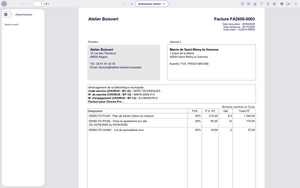
The factur-x.xml file attached to the invoice PDF, as a PDF reader shows it
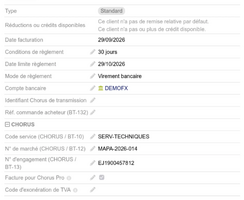
An invoice to a town hall, with its Chorus Pro references
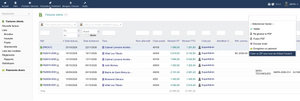
The mass action of the invoice list: every Factur-X file in a ZIP
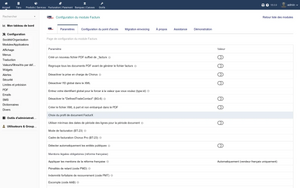
The module setup: separate PDF, merge of linked documents, XML only, Factur-X profile
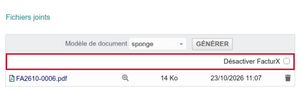
The checkbox that produces a PDF without Factur-X, as a one-off


Links
- Module documentation
- What's new in version 1.6.159 (in French)
- Get update notifications
- Support form
- Online demo: a Dolibarr with five fictitious customers and their Factur-X invoices, created for you in less than 20 seconds and removed after the session
Requirements
| Item | Version or condition |
|---|---|
| Dolibarr | 18.0 or higher |
| PHP | 7.4 or higher, with the GD and zlib extensions |
| Dolibarr modules | Third parties and Invoices enabled |
| Rights | an administrator account to install, enable and set up the module |
Installation
- Download archive file of module (.zip file) from web site www.dolistore.com or from any other source.
- Install module into the /custom folder of Dolibarr:
- Go to Home - Setup - Modules - Deploy/install external app/module
- Upload the file. Note: If it fails because upload from this page has been locked by your web hosting provider, you can manually unzip the file into the /custom directory from command line: Go into the /custom directory and uncompress file with command unzip modulefile.zip then check that the directory with the nameof the module is inside the /custom directory. If into a subdirectory, just move it into /custom.
- Module should be ready to be activated and used.
Upgrade
- Install the new version through Home > Setup > Modules/Applications > Deploy/install external app/module.
- Disable then enable the module again: enabling applies the database upgrades and creates the new extra fields.
Your settings are kept.
Uninstall
Disable the module from Home > Setup > Modules/Applications. The settings and the extra fields stay in the database: enabling the module again finds them back.
Setup
To use this module, you must first enable it using an administrator account, via the menu option "Home - Setup - Modules".
Choose the tab where the module is listed. Then click on "Activate".
The module is now activated.
If a cog icon appears  on module thumb or at end of the line of the module, click on it to access the setup page specific to the module.
The setup is in Home > Setup > Modules > Facturx. It has the tabs Settings, Access point configuration, Additional fields, einvoicing migration, About, Support and Demonstration.
Settings
| Setting | Purpose |
|---|---|
| Factur-X profile | EN 16931 by default; EXTENDED for a payer third party, XRECHNUNG 3 for Germany |
| Create a new suffixed PDF file | keeps the original PDF and produces a second PDF carrying the XML |
| Merge PDF documents | adds the PDFs of the linked documents (orders, delivery notes) before embedding |
| Create the XML separately | also writes the XML to a separate file |
| Disable Chorus | hides the Chorus fields, which also carry the BT-10, BT-12 and BT-13 codes of private customers |
| Custom global identifier | replaces the identifier of your company (BT-29) with a value in the scheme:identifier form, a GLN for instance |
Access point configuration
The Access point configuration tab picks the accredited platform (SuperPDP), holds the OAuth connection and the electronic invoicing address of your company (BT-34). With no address entered, a French company uses its SIREN under the 0225 scheme.
Demonstration
The Demonstration tab creates, then purges, an issuing company, five customers, products and seven invoices, among them a Chorus Pro invoice and a VAT reverse-charge invoice. Generating is refused on a production install: it is meant for test instances.
Permissions
The module declares four permissions, granted by an administrator from Home > Users & Groups, Permissions tab:
- read the supplier invoice imports;
- create and update the imports;
- delete the imports;
- import supplier invoices from the access point.
Embedding the XML into customer invoices needs no permission of its own: it follows the usual rights on invoices.
Usage
Customer invoices
Nothing to do day to day: generate the PDF of an invoice as usual, the Factur-X XML is embedded into it. When a mandatory piece of information is missing, a message names it at generation time. The Disable FacturX checkbox of the PDF generation area produces a PDF without XML as a one-off.
Received supplier invoices
The Supplier invoices > Import from AP menu lists the invoices retrieved from the access point, with their supplier and number read from the XML. An invoice already present in Dolibarr is flagged and its import blocked.
Each screen is described in the user guide.
FAQ
The module says "Your VAT number is empty".
Fill in the intra-community VAT number in Home > Setup > Company/Organization. A German company without a VAT number can enter its Steuernummer in Prof. Id 1 instead.
How do I check that the XML is in the PDF?
Open the PDF in a reader that shows attachments: a factur-x.xml file is listed. You can also enable Create the XML separately to get it as a separate file.
The PDF is not changed.
Check that the GD and zlib PHP extensions are installed, and that the hidden PDF_SECURITY_ENCRYPTION constant is not set: the setup page of the module warns you when it is.
What do the BT-34, BT-49... codes mean?
They are the names of the information items of the EN 16931 standard. The FAQ of the documentation lists the most frequent ones and where each is set in Dolibarr.
All questions: documentation FAQ.
Development
Developments and improvements can be suggested to the project maintainer by email (see the headers of the source files) or through the support form.