Module CapComments


Information
| Module name | CapComments |
| Editor / Editeur | CAP-REL - www.cap-rel.fr |
| Download or buy page / Page achat ou téléchargement | External module - www.dolistore.com |
| Status / Statut / Estado | Stable |
| Prerequisites / Prérequis |
Dolibarr min version: See on Dolistore Dolibarr max version: See on Dolistore |
| Last update date / Date mise à jour fiche / Fecha última actualización | 2026-10-25 |
| Note / Nota | Threaded comments on Dolibarr cards, with @colleague mentions, scheduled reminders and notifications that follow the rights of each user. |
Features
Discussions about a customer, a proposal or a project get lost in emails and chat tools. CapComments brings them back where the file lives: a Comments tab on Dolibarr cards, with threads, mentions, reminders and notifications.
At a glance
- For whom: any team working together on the same third parties, proposals, orders, projects or tickets.
- What the module does: it adds a comment thread on each supported card, notifies the colleagues mentioned and schedules reminders.
- What it does not do: it sends no email, changes no business document and never shows a comment to someone who may not open the card.
Feature list
- Comments tab on more than twenty kinds of cards: third parties, proposals, orders, invoices, supplier orders and invoices, projects, tasks, tickets, contracts, interventions, products, expense reports, leaves, manufacturing orders and more.
- Threads with nested replies.
- Mentions with @login, names suggested while typing; a mention only notifies colleagues who may open the card.
- Scheduled reminders at a given date, sent by the scheduled job of the module, and personal reminders with @me, @moi or @self.
- Notifications by a bell in the top bar or by a sticky note, as you prefer.
- Private comments for internal users only, or public ones, also shown to the external accounts of the third party.
- Lists of all comments and of your notifications, filtered by author, third party, message or date.
- Widget of the connected users on the dashboard.
- Demonstration data built and removed in one click, on demonstration and development instances.
- Nine languages: French, English, German, Spanish, Italian, Dutch, Polish, Portuguese and Brazilian Portuguese.
Screenshots
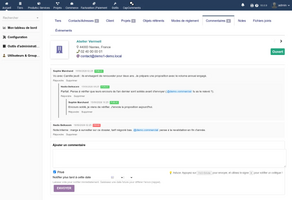
The Comments tab on a third party card
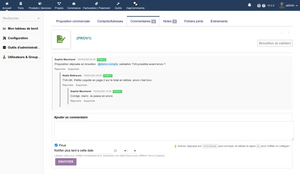
A thread with nested replies
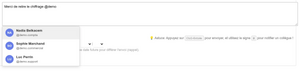
Colleagues suggested while typing a mention
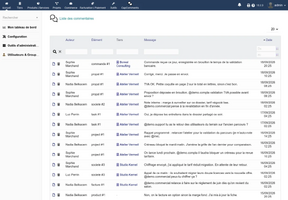
The comments list, filtered by third party
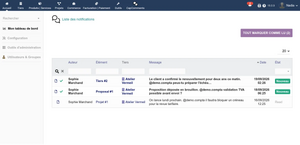
The notifications list
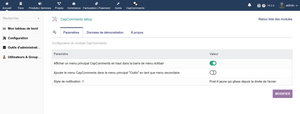
Module setup page


Links
- Module documentation
- What's new in version 1.0.28 (in French)
- Get update notifications
- Support form
- Online demo: a Dolibarr with threads, mentions and reminders already in place, created for you in less than 20 seconds and removed after the session
Requirements
| Item | Version or condition |
|---|---|
| Dolibarr | 18.0 or later |
| PHP | 7.4 or later |
| Rights | an administrator account to install, enable and set up the module |
The Comments tab shows on the cards of the enabled Dolibarr modules: a missing module simply has no tab.
Installation
- Download archive file of module (.zip file) from web site www.dolistore.com or from any other source.
- Install module into the /custom folder of Dolibarr:
- Go to Home - Setup - Modules - Deploy/install external app/module
- Upload the file. Note: If it fails because upload from this page has been locked by your web hosting provider, you can manually unzip the file into the /custom directory from command line: Go into the /custom directory and uncompress file with command unzip modulefile.zip then check that the directory with the nameof the module is inside the /custom directory. If into a subdirectory, just move it into /custom.
- Module should be ready to be activated and used.
Upgrade
- Install the new version through Home > Setup > Modules/Applications > Deploy/install external app/module.
- Disable then enable the module again: enabling applies the database upgrades and grants the read and write rights to internal users once.
Your comments, notifications and settings are kept.
Uninstall
Disable the module from Home > Setup > Modules/Applications. Comments and notifications stay in the database: enabling the module again later finds them back.
Setup
To use this module, you must first enable it using an administrator account, via the menu option "Home - Setup - Modules".
Choose the tab where the module is listed. Then click on "Activate".
The module is now activated.
If a cog icon appears  on module thumb or at end of the line of the module, click on it to access the setup page specific to the module.
The setup is in Home > Setup > Modules > CapComments. It has the Settings, Demonstration data and About tabs.
| Setting | Role |
|---|---|
| CapComments main menu | shows the menu of the module in the top bar |
| Menu in Tools | adds the menu of the module to the Tools menu |
| Notification style | bell in the top bar, or sliding sticky note |
Scheduled reminders are sent by the CapComments scheduled job: check that it is enabled in Home > Admin tools > Scheduled jobs.
Demonstration data
The Demonstration data tab builds, then purges, a full data set: third parties, a proposal, a project, demonstration accounts, threads, mentions and reminders. It only runs on a demonstration or development instance; elsewhere, set the CAPCOMMENTS_ALLOW_DEMO_DATA constant to 1, or MAIN_FEATURES_LEVEL to 2. Never run it on a production install.
Permissions
| Permission | What it allows |
|---|---|
| Read comments and notifications | see the Comments tab, the comments list and one's notifications |
| Write comments | comment, reply and delete one's own comments |
| Delete comments written by other users | moderate the comments of a card |
The rights of the module add to those of the card: a sales representative limited to their customers only sees the comments of their customers. External accounts only see the public comments of their own third party's cards.
Usage
Open a card, click the Comments tab, write your message and tick Private if only internal users should read it. Type @ to mention a colleague, pick a date to schedule a reminder, and send with the button or with Ctrl+Enter. The Reply link opens a reply in the thread.
Your notifications show in the top bar; the full list and the list of all comments are in the menu of the module.
Details are in the user guide (in French).
FAQ
I do not see the Comments tab on a card.
Check that you have the right to read comments and that the kind of card is supported.
A mentioned colleague got no notification.
A mention only notifies people who have the right to read comments and to open the card; a private comment never notifies an external account.
A scheduled reminder was not sent.
Check that the CapComments scheduled job is enabled.
All questions: FAQ of the documentation (in French).
Development
Developments and improvements can be suggested to the project maintainer by email (see the headers of the source files) or through the support form.