Module CapDoliWiki


Information
| Module name | CapDoliWiki |
| Editor / Editeur | CAP-REL - www.cap-rel.fr |
| Download or buy page / Page achat ou téléchargement | External module - www.dolistore.com |
| Status / Statut / Estado | Stable |
| Prerequisites / Prérequis | None
Dolibarr min version: See on Dolistore Dolibarr max version: See on Dolistore |
| Last update date / Date mise à jour fiche / Fecha última actualización | 2026-10-27 |
| Note / Nota | Internal wiki for Dolibarr: pages in a tree, visual Markdown editor, full-text search, tags, links between pages, version history and PDF export. |
Features
A company's internal documentation often lives in office files, emails or a separate wiki. CapDoliWiki brings it into Dolibarr: procedures, work instructions, job descriptions, meeting minutes and knowledge base are written and found in the same place as your ERP, with the Dolibarr accounts and permissions.
At a glance
- Who it is for: small and medium companies that use Dolibarr and want their internal documentation in one place.
- What it does: it adds an internal wiki with a visual editor, search, tags, links between pages, version history, attachments and PDF export.
- What it does not do: it publishes nothing on the Internet and relies on no outside service: the wiki is only readable by the Dolibarr users who have the right.
Feature list
- Visual Markdown editor - toolbar, tables, code blocks, full-screen mode, draft saved locally.
- Images - pasted from the clipboard or dropped into the page, resized automatically, four display sizes, full-screen zoom.
- Rich content - Mermaid diagrams, code syntax highlighting, information and warning boxes, generated table of contents.
- Tree - pages and sub-pages, breadcrumb.
- Full-text search - in titles and content, results ranked by relevance, terms highlighted.
- Tags and links between pages - tags in a dedicated field or #tag in the text, page links suggested as you type, backlinks, maintenance page for broken links.
- History - one version per save, line-by-line comparison, one-click restore.
- Locking - a page being edited cannot be overwritten by a colleague.
- Trash - reversible deletion, automatic purge after the chosen delay.
- Attachments and PDF export - files attached to each page, PDF export of a page or of a branch.
- Demo data - the wiki of a 50-employee company, more than 400 pages with their history, generated and removed in one click.
- Nine languages - French, English, German, Spanish, Italian, Dutch, Polish, Brazilian and European Portuguese.
Screenshots
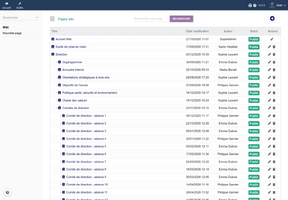
Wiki home: the page tree, authors and modification dates
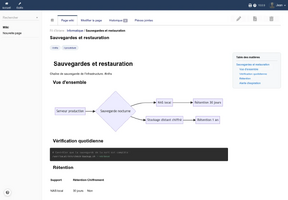
A page in read mode: diagram, highlighted code and table of contents
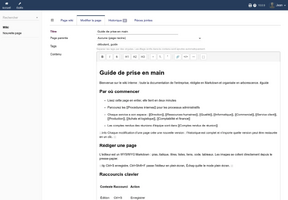
The visual Markdown editor
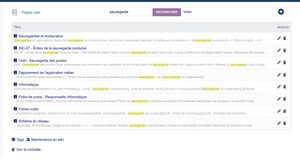
Full-text search, terms highlighted
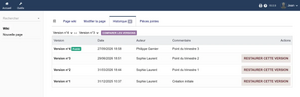
Version history of a page
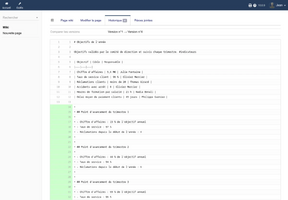
Comparison of two versions
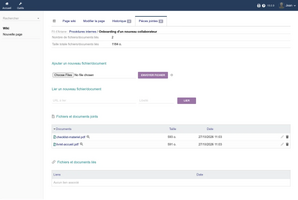
Attachments of a page
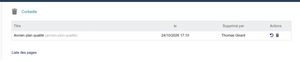
The trash and the restore of a page


Links
- Module documentation
- What's new in version 1.3.0 (in French)
- Get update notifications
- Support form
- Quality report: the acceptance tests of the module and their results
- Online demo: a Dolibarr with the wiki of a 50-employee company, created for you in less than 20 seconds and removed after the session
Requirements
| Item | Version or condition |
|---|---|
| Dolibarr | 18.0 to 24 |
| PHP | 7.4 or later, GD extension to resize images |
| Rights | an administrator account to install, enable and set up the module |
CapDoliWiki works on its own, with no other module.
Installation
- Download archive file of module (.zip file) from web site www.dolistore.com or from any other source.
- Install module into the /custom folder of Dolibarr:
- Go to Home - Setup - Modules - Deploy/install external app/module
- Upload the file. Note: If it fails because upload from this page has been locked by your web hosting provider, you can manually unzip the file into the /custom directory from command line: Go into the /custom directory and uncompress file with command unzip modulefile.zip then check that the directory with the nameof the module is inside the /custom directory. If into a subdirectory, just move it into /custom.
- Module should be ready to be activated and used.
Upgrade
- Install the new version through Home > Setup > Modules/Applications > Deploy/install external app/module.
- Disable then enable the module again: enabling it creates the new tables and indexes the content of existing pages for the search.
Your pages, their history and your settings are kept.
Uninstall
Disable the module from Home > Setup > Modules/Applications. The pages stay in the database: enabling the module again later finds them back.
Setup
To use this module, you must first enable it using an administrator account, via the menu option "Home - Setup - Modules".
Choose the tab where the module is listed. Then click on "Activate".
The module is now activated.
If a cog icon appears  on module thumb or at end of the line of the module, click on it to access the setup page specific to the module.
The setup is in Home > Setup > Modules > CapDoliWiki. It has three tabs: Setup, Demo mode and About.
| Setting | Role | Default |
|---|---|---|
| Lock duration | how long a page opened for editing stays reserved to its editor | 1800 seconds |
| Default status of new pages | published or draft | published |
| Maximum image width | beyond it, an uploaded image is resized | 1920 pixels |
| JPEG quality | compression of resized images | 85 |
| Trash retention | days before the automatic purge, 0 for never | 30 days |
| Autosave interval | how often the draft is saved in the browser | 30 seconds |
Permissions
Permissions are set in Home > Users & Groups, Permissions tab.
| Permission | Role |
|---|---|
| Read wiki pages | read access, required to open the wiki |
| Create/modify wiki pages | creation, editing, attachments |
| Delete wiki pages | move to trash, restore, permanent deletion |
Usage
Once enabled, a Wiki entry shows in the left menu of Documents.
- Create a page: + button of the page list, then title, parent page, tags and content.
- Link pages: type [[ in the editor, existing pages are suggested.
- Find a page: search field of the page list, or tag cloud.
- Follow changes: History tab of each page, with comparison and restore.
Every screen is described in the user guide.
FAQ
A message tells me the page is locked.
A colleague is editing it. The lock is released when they leave the editor, or at the end of the lock duration; an administrator can also force it.
Pasting an image does not work.
The PHP GD extension must be enabled and the Dolibarr data directory writable by the web server.
How do I restore a deleted page?
See the trash link at the bottom of the page list, then the restore button: the page comes back with its whole history.
All the questions: documentation FAQ.
Development
Developments and improvements can be suggested to the project lead by email (see the headers of the source files) or through the support form.