Module CapDecisions: Difference between revisions
Eric.seigne (talk | contribs) (CapDecisions 1.2.1) |
Eric.seigne (talk | contribs) (CapDecisions 1.2.2) |
||
| Line 52: | Line 52: | ||
* [https://doc.cap-rel.fr/capdecisions/?lang=en Module documentation] | * [https://doc.cap-rel.fr/capdecisions/?lang=en Module documentation] | ||
* [https://doc.cap-rel.fr/capdecisions/nouveautes-1-2- | * [https://doc.cap-rel.fr/capdecisions/nouveautes-1-2-2 What's new in version 1.2.2] (in French) | ||
* [https://dolinews.com/en/projets/capdecisions Get update notifications] | * [https://dolinews.com/en/projets/capdecisions Get update notifications] | ||
* [https://cap-rel.fr/sav-module-dolibarr/ Support form] | * [https://cap-rel.fr/sav-module-dolibarr/ Support form] | ||
Latest revision as of 10:44, 28 October 2026


Information
| Module name | CapDecisions |
| Editor / Editeur | CAP-REL - www.cap-rel.fr |
| Download or buy page / Page achat ou téléchargement | External module - www.dolistore.com |
| Status / Statut / Estado | Stable |
| Prerequisites / Prérequis | None; Members module optional
Dolibarr min version: See on Dolistore Dolibarr max version: See on Dolistore |
| Last update date / Date mise à jour fiche / Fecha última actualización | 2026-10-28 |
| Note / Nota | Collaborative decision-making inspired by Loomio: working groups, discussions, proposals and votes, open to outside participants through public pages. |
Features
Team decisions are often made through emails, scattered polls and chat apps. CapDecisions brings the whole process into Dolibarr: you organise your groups, start discussions and put proposals to the vote, in the same place as your third parties, projects and members.
At a glance
- Who it is for: associations, collectives, boards, committees, project teams, any organisation that has to decide together.
- What it does: it organises the exchanges into groups, discussions and proposals, collects votes with five decision methods and keeps the record of each decision and of its reasons.
- What it does not do: it relies on no outside service, Loomio included, and publishes nothing by default: each discussion or proposal is made public one by one.
Feature list
- Working groups - open, private or closed groups, administrator, member and observer roles, hierarchy with a parent group.
- Members from every source - Dolibarr users, foundation members or contacts.
- Discussions - discussion threads per group, nested comments, tags, pinning of the important discussions.
- Images - image upload in the descriptions of discussions and proposals, limited to the people who can edit them.
- Five decision types - majority vote, consent, advice process, ranked choice and multiple-choice poll.
- Real-time results - progress bars, percentages, detailed list of votes and of their reasons; a vote can be changed as long as the poll is open.
- Public pages - discussions and proposals reachable through a public link, sign-in with a code sent by email, captcha, rate limiting, moderation of anonymous comments and optional anonymous vote.
- Seven languages - English, French, German, Spanish, Italian, Dutch and Brazilian Portuguese.
Screenshots
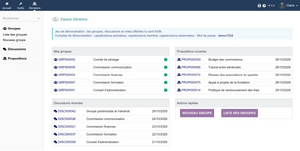
Dashboard: my groups, recent discussions and open proposals
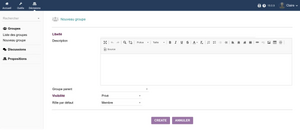
Creating a working group
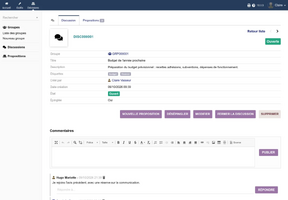
A discussion and its comments
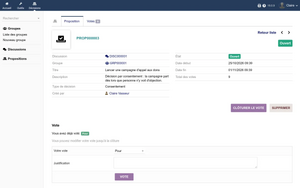
A proposal open to the vote, with the count of votes
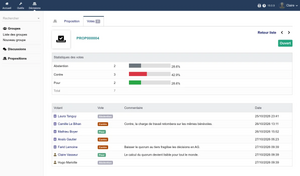
The detail of votes and their reasons
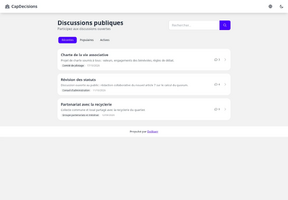
The public portal of discussions
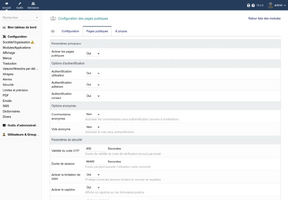
Setup of the public pages


Links
- Module documentation
- What's new in version 1.2.2 (in French)
- Get update notifications
- Support form
- Automated test report
- Online demo: a Dolibarr with a full data set, created for you in less than 20 seconds and removed after the session
Requirements
| Item | Version or condition |
|---|---|
| Dolibarr | 18.0 or later |
| PHP | 7.4 or later |
| Rights | an administrator account to install, enable and set up the module |
| Public pages | working email sending in Dolibarr, for the sign-in codes |
CapDecisions works on its own. The Members module is optional: when it is enabled, foundation members can join the groups and sign in on the public pages.
Installation
- Download archive file of module (.zip file) from web site www.dolistore.com or from any other source.
- Install module into the /custom folder of Dolibarr:
- Go to Home - Setup - Modules - Deploy/install external app/module
- Upload the file. Note: If it fails because upload from this page has been locked by your web hosting provider, you can manually unzip the file into the /custom directory from command line: Go into the /custom directory and uncompress file with command unzip modulefile.zip then check that the directory with the nameof the module is inside the /custom directory. If into a subdirectory, just move it into /custom.
- Module should be ready to be activated and used.
Upgrade
- Install the new version through Home > Setup > Modules/Applications > Deploy/install external app/module.
- Disable then enable the module again: enabling it applies the database updates and registers the new permissions.
Your groups, discussions, proposals and votes are kept.
Uninstall
Disable the module from Home > Setup > Modules/Applications. The data stays in the database: enabling the module again later finds it back.
Setup
To use this module, you must first enable it using an administrator account, via the menu option "Home - Setup - Modules".
Choose the tab where the module is listed. Then click on "Activate".
The module is now activated.
If a cog icon appears  on module thumb or at end of the line of the module, click on it to access the setup page specific to the module.
The setup is in Home > Setup > Modules > CapDecisions. It has three tabs: Settings, Public pages and About.
Settings
| Setting | Purpose |
|---|---|
| Default group visibility | visibility offered when a group is created: open, private or closed |
| Default decision type | type preselected when a proposal is created |
| Allow anonymous vote | enables anonymous voting on proposals |
Public pages
| Setting | Purpose | Default |
|---|---|---|
| Enable public pages | allows discussions and proposals to be made public | disabled |
| User, member, contact authentication | kinds of accounts allowed to sign in on the public pages | |
| Anonymous comments | allows comments without signing in, subject to moderation | |
| Sign-in code validity | validity of the code sent by email, from 60 to 3600 seconds | 600 seconds |
| Session length | how long a signed-in visitor stays connected, from 3600 to 604800 seconds | 86400 seconds |
| Rate limiting | at most three codes in five minutes per address, blocked after five wrong codes | enabled |
| Captcha | Dolibarr captcha before any code is sent, no outside service | enabled |
| Trusted reverse proxies | IP addresses of your proxies, to read the real visitor address | empty |
Permissions
Permissions are set in Home > Users & Groups, Permissions tab.
| Permission | Purpose |
|---|---|
| View groups and discussions | read access, required to open the module |
| Create discussions, comments and vote | active participation |
| Create groups | creation of new working groups |
| Delete own content | deletion of one's own discussions, comments and votes |
| Administer all groups and content | full access to the whole module |
Usage
Once enabled, a Decisions menu shows in the top bar. The left menu leads to Groups, Discussions and Proposals.
Dashboard
The home page of the module gathers your groups, the recent discussions, the open proposals with their closing date, and shortcuts to create a group.
From group to decision
- Create the group: Decisions > Groups > New group, then invite the members from the Members tab and give each a role.
- Start a discussion: from the group card, Discussions tab. Members answer with comments.
- Submit a proposal: from the discussion, pick the decision type and the closing date, then open the vote.
- Close: a group administrator closes the vote; the proposal becomes adopted or rejected and stays available.
Decision types
| Type | What members are asked |
|---|---|
| Majority vote | for, against or abstain; adopted when the votes for outnumber the votes against |
| Consent | for, abstain or objection; adopted when nobody objects, a single objection blocks the decision |
| Advice process | an advisory opinion for, against or abstain; the decision belongs to the author of the proposal |
| Ranked choice | a ranking of the options by preference |
| Poll | one option among at least two, results shown in real time |
Outside participants
A discussion or a proposal can be opened to people with no Dolibarr account. A public link then shows on its card; the participant signs in with a code received by email. Nothing is public by default.
Every screen is described in the user guide.
FAQ
The Decisions menu does not show.
The user needs the View groups and discussions permission.
What is the difference between a private group and a closed group?
A private group shows in the list, but joining it needs the approval of a group administrator. A closed group does not show: only invited members can reach it.
Can I change my vote?
Yes, as long as the vote is open. The previous vote is replaced.
Who can close a vote?
The group administrators. Closing freezes the results.
The public link does not show on a discussion.
Public pages are disabled by default: a Dolibarr administrator enables them in the Public pages tab of the setup.
Are anonymous comments published right away?
No, they only show once moderated.
All the questions: documentation FAQ.
Development
Developments and improvements can be suggested to the project lead by email (see the headers of the source files) or through the support form.